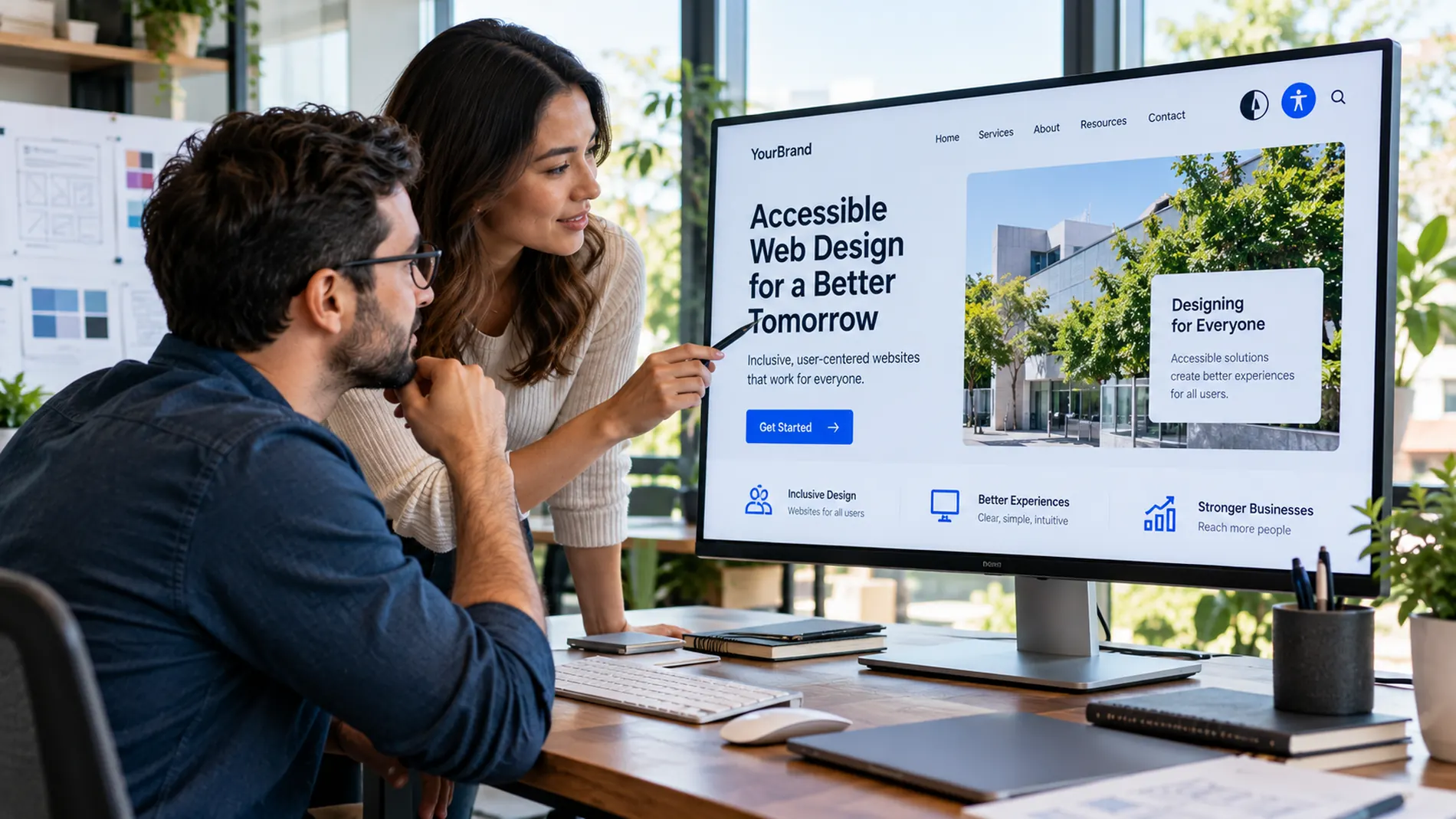
Great websites should work for more than the average mouse-and-keyboard user. People visit business websites with different abilities, devices, and preferences. Some use screen readers, some navigate by keyboard, some enlarge text, and others need captions or simpler instructions. Accessible web design removes unnecessary barriers so more people can read, navigate, and interact with your site.
Accessibility is becoming an especially important design conversation in 2026. In its 2026 WebAIM Million study, WebAIM detected potential Web Content Accessibility Guidelines (WCAG) failures on 95.9% of the one million homepages tested. That number does not mean every website failed a complete manual audit, but it reveals how widespread detectable barriers remain.
What Is Accessible Web Design?
Accessible web design means planning and building websites that people with disabilities can use. It includes visual choices, meaningful content, navigation, forms, and the underlying code. Accessibility benefits people with permanent disabilities, but it can also help someone temporarily using one hand, browsing in bright sunlight, or watching a video without sound.
The international reference point is the Web Content Accessibility Guidelines 2.2, published by the World Wide Web Consortium (W3C). WCAG organizes its recommendations around four principles: content should be perceivable, operable, understandable, and robust. For a business owner, that translates into a straightforward goal: make essential information and actions usable in different ways.
Why Accessibility Matters for Businesses in 2026
An attractive layout is not effective if customers cannot read a button, complete a form, or understand a service description. Accessibility barriers can interrupt inquiries, purchases, subscriptions, and other everyday actions. Removing those obstacles can support usability and create a more welcoming brand experience.
Accessibility also belongs in the wider discussion about responsible design. Your existing article on user-centered design for business growth explains why designing around real customer needs matters. Inclusive design applies that principle to people who interact with websites differently.
Accessibility requirements vary by jurisdiction and business type. For example, the U.S. Department of Justice’s Title II web accessibility rule addresses state and local governments and specifies WCAG 2.1 AA, with revised compliance dates. It should not be described as a blanket WCAG 2.2 deadline for every private company. Businesses should seek qualified legal guidance about requirements that apply to them.

Start With Readable Text and Strong Contrast
One of the easiest areas to overlook is contrast. Light-gray text over a white background may look elegant in a mockup but become difficult to read on a mobile screen. The same issue affects placeholder text, navigation labels, captions, and buttons.
WCAG 2.2 generally calls for a contrast ratio of at least 4.5:1 for normal text and 3:1 for qualifying large text at Level AA. Avoid communicating essential information through color alone, too. If a form error appears only as a red border, some users may not understand what went wrong.
Use readable font sizes, sufficient line spacing, descriptive link text, and paragraphs that can be scanned. A strong visual hierarchy supports both comprehension and attractive design. That balance connects naturally with your post on why design is crucial for business success.
Make Navigation Work Without a Mouse
Try opening your homepage and pressing the Tab key repeatedly. Can you reach the menu, links, buttons, and contact form? Is the currently selected element obvious? Can you open menus and dismiss popups without reaching for a mouse?
Keyboard access is essential for many people with motor disabilities and those who use assistive technologies. A visible focus indicator helps users understand where they are on the page. In WCAG 2.2, the Focus Not Obscured criterion also addresses situations where a sticky header or floating banner hides a focused control.
Other practical improvements include a skip-to-content link, logical tab order, properly coded buttons, and navigation menus that do not depend on hovering. These choices frequently improve the experience for everyone, not only keyboard users.
Write Useful Alt Text for Images
Alternative text describes meaningful images to people who cannot see them. It is also useful when an image fails to load. An effective description should communicate the image’s purpose in context instead of stuffing it with keywords.
For instance, a photo showing a designer testing a website on a phone could use alt text such as “Designer reviewing a responsive website on a smartphone.” If the image is purely decorative and contributes no additional information, an empty alt attribute may be more appropriate.
The W3C’s web accessibility tutorials explain how to handle informative images, decorative images, buttons, tables, and forms. A good image strategy can also reinforce the brand consistency discussed in Building a Strong Brand.
Design Forms That People Can Complete
Contact forms are often the final step before a visitor becomes a lead. Labels should clearly identify each field, and instructions should explain formatting requirements before users submit. Don’t rely only on placeholder text that disappears as someone types.
When a submission fails, identify the affected fields and explain how to fix them. Keep error messages near relevant inputs and make them available to assistive technologies. Use logical field grouping and avoid asking visitors to enter the same information repeatedly without a good reason.
These improvements reduce confusion and can help a wider range of customers complete important tasks independently.
Keep Motion Helpful, Not Distracting
Animation can guide attention, reinforce feedback, and make an interface feel polished. But excessive motion, rapid flashing, and automatic sliding elements may create barriers for some users. Accessible design does not require eliminating every animation. It requires using motion thoughtfully.
Provide controls to pause or stop moving content where required, avoid unnecessary flashing, and respect a device’s reduced-motion preference when possible. Your article on motion graphics and micro-animations in web design is a useful companion to this discussion: motion works best when it serves a clear purpose.
Consider Mobile Accessibility From the Start
Many customers will first encounter your business on a smartphone. Small touch targets, tightly spaced links, fixed overlays, and forms that require awkward zooming can make mobile experiences frustrating.
WCAG 2.2 introduced additional criteria addressing issues such as minimum target sizes, dragging alternatives, and accessible authentication. The W3C explains these changes in What’s New in WCAG 2.2.
Test pages at different screen sizes and zoom levels. Check that text reflows instead of disappearing, menus remain usable, and important buttons are large enough to activate without accidental taps. A mobile-first layout should prioritize clarity, not simply shrink the desktop design.
Improve Video, Audio, and Content Structure
If your website includes promotional videos, tutorials, or interviews, add accurate captions and consider transcripts. Some videos also need audio description or an equivalent alternative when important visual information is not conveyed in the soundtrack.
Use real heading elements in the correct order. A visual heading that merely looks bold is not the same as semantic HTML that helps a screen-reader user understand the page structure. Clear headings and concise explanations also help all visitors scan the information they need.
Accessibility should be built into the publishing workflow, not left to a final visual inspection.
What About AI Accessibility Tools?
AI can help draft image descriptions, suggest plain-language rewrites, or identify possible coding problems. Automated scanners can quickly highlight issues such as missing form labels and some contrast failures. They are useful starting points, but they do not replace human evaluation.
W3C’s accessibility evaluation guidance notes that no tool can independently determine whether an entire website meets accessibility standards. Human judgment and testing with assistive technology remain necessary. Treat automated findings as part of an ongoing quality process rather than proof that a site is fully accessible. For related digital design context, see our AI-enhanced branding and web design trends article.
Accessibility Tips for WordPress Websites
WordPress users can make meaningful improvements without reinventing their websites. Start by selecting a well-maintained theme with accessibility-conscious templates. Check the navigation menu, search field, contact forms, headings, images, and any interactive plugins.
Follow the WordPress accessibility coding standards, which expect code integrated into the WordPress ecosystem to meet WCAG 2.2 AA. Remember that a theme’s accessibility claims do not automatically cover every plugin, third-party widget, or piece of content you publish.
For image-heavy pages, write meaningful alt text in the Media Library. For buttons, use descriptive labels. For forms, test submission and error states. Finally, verify key pages after major theme, plugin, or content updates.
A Practical Accessibility Audit Checklist
Start with your homepage, a service page, an article, and your contact form. These pages represent several common visitor journeys and can reveal a broad range of problems.
- Check text and interface contrast in normal and hover states.
- Navigate the full page using only the keyboard.
- Inspect headings, link labels, and image alt text.
- Submit forms with missing or incorrect information.
- Zoom the page and test it on a small mobile screen.
- Review captions and controls on embedded videos.
- Use automated scanning alongside manual and assistive-technology checks.
Record what you find, prioritize barriers to essential tasks, and retest after corrections. Accessibility is a continuing design practice because websites change as businesses grow.
Conclusion: Design Websites That Welcome More People
Accessible web design in 2026 is about more than meeting a technical checklist. It is an opportunity to create clearer navigation, readable content, inclusive interactions, and better experiences for customers with different needs.
WCAG 2.2 provides a practical framework, while WordPress and W3C resources can guide implementation. Begin with the most important customer journeys, involve real users where possible, and build accessibility into every future update. A website that more people can use is a stronger foundation for your digital presence.